Accessibility
Using semantic HTML for web accessibility
Semantic HTML means using HTML elements according to their intended purpose, for example <nav>, <main>, <article> and <button>, instead of relying on generic elements such as <div> and <span>.
Semantic HTML gives browsers and assistive technologies information about the structure and purpose of the content. It also makes the page easier for search engines and other automated systems to understand.
General
Make sure the <html> element has a lang attribute that specifies the primary language of the page. Set the page <title> to a descriptive text. Do not disable browser zoom using user-scalable=no or restrictive maximum-scale values.
<!DOCTYPE html><html lang="en"><head> <title>Descriptive title</title> <meta name="viewport" content="width=device-width, initial-scale=1.0"></head><body>...</body></html>WCAG level AA expects text (with the exception captions and images of text) to be able to be zoomable to 200%. Make sure that your design and styling can handle this.
Landmark elements
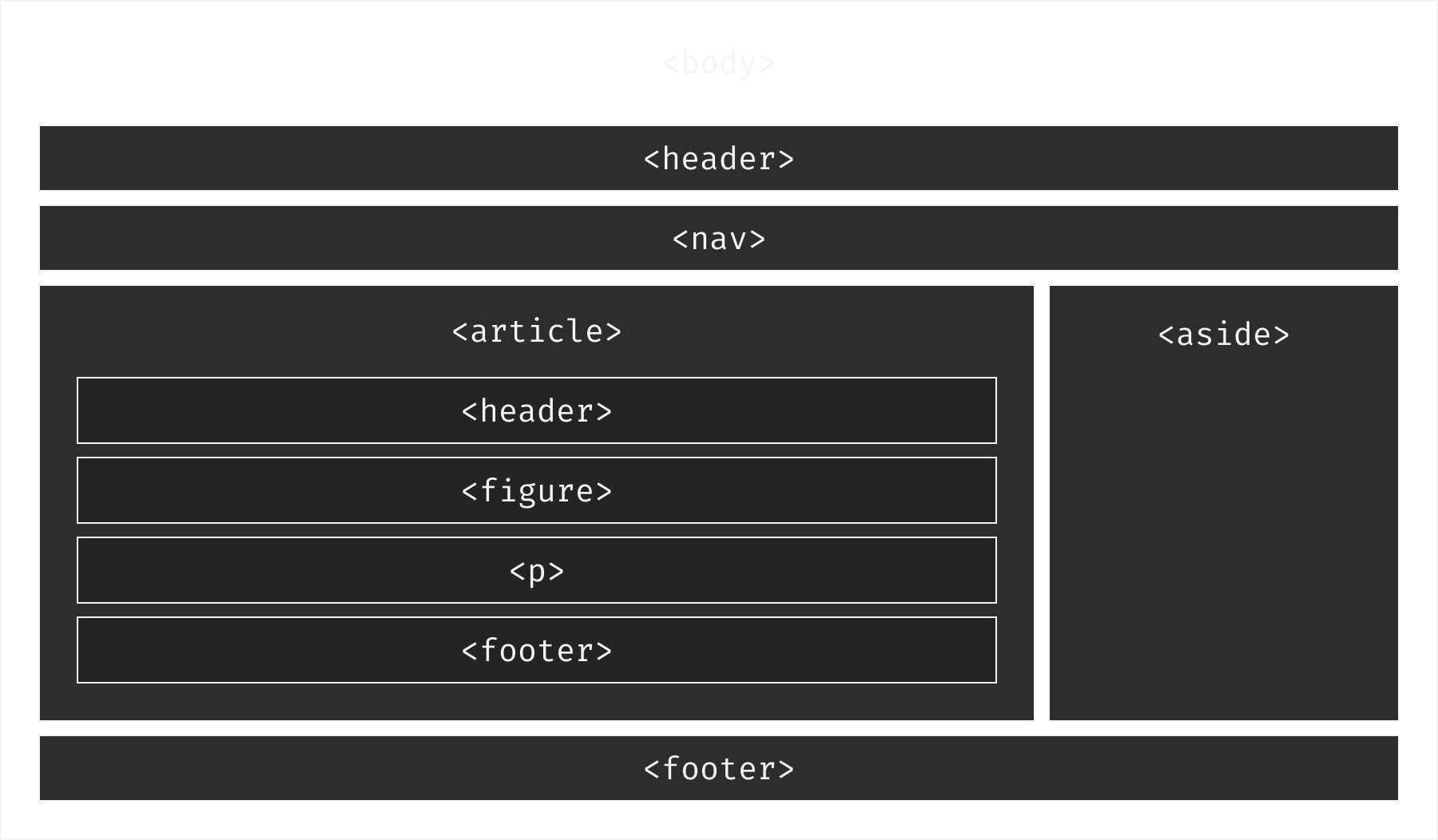
Landmarks identify the major areas of a page and make it easier for assistive technologies to understand and navigate the page structure.
Use semantic HTML elements such as <header>, <nav>, <main>, <aside>, <footer> and <search> where they match the purpose of the content.
A page should normally contain one <main> element.
When multiple landmarks of the same type are used, give them descriptive accessible names so they can be distinguished from each other.
<nav aria-label="Primary"> ...</nav><nav aria-labelledby="related-navigation"> <h2 id="related-navigation">Related pages</h2> ...</nav>Landmark roles
Prefer native semantic HTML over adding ARIA landmark roles manually.
Use <nav> instead of <div role="navigation"> and <main> instead of <div role="main">.
Add ARIA roles only when native HTML cannot provide the required semantics.
Read more about roles at https://developer.mozilla.org/en-US/docs/Web/Accessibility/ARIA/Roles.
Headings
As a general convention, use one <h1> for the main page heading. Structure subsequent headings according to the content hierarchy using <h2> through <h6>. Think of the heading hierarchy as the outline or table of contents for the page.
<h1>Main page title</h1><section> <h2>Section title</h2> <h3>Section subtitle</h3></section><section> <h2>Next section title</h2></section>Heading levels describe document structure, not visual styling. Use CSS to control how headings look.
Test your site
Automated accessibility tools such as pa11y can identify many common issues, but cannot verify accessibility on their own. Semantic structure should also be checked manually using keyboard navigation, browser accessibility tools and, where appropriate, a screen reader.
npx pa11y https://www.itiden.seTo do
The
<html>element has the correctlangattribute.The page has a descriptive
<title>.Browser zoom is not disabled.
Text can be resized to 200% without loss of content or functionality.
Content reflows without horizontal page scrolling at 320 CSS pixels.
The page normally contains one
<main>element.<nav>is used for significant navigation areas.Multiple landmarks of the same type have descriptive accessible names.
Native semantic HTML is preferred over generic elements and ARIA roles.
Heading elements follow a logical hierarchy.